
Most WordPress sites we audit have the same quiet problem. The owner has published dozens of useful posts and service pages, but they barely link to each other. New posts sit on their own, older guides are buried ten pages deep in the blog archive, and the service pages that actually make money get almost no links from the content that attracts visitors.
Fixing that is one of the cheapest SEO improvements available, because it uses pages you already have. This guide explains how internal linking for WordPress works, what Google officially says about links and anchor text, how to plan a simple structure, how to add and audit links in the block editor, and the mistakes to avoid.
Key takeaways
- Google uses links to find pages and to understand how relevant they are. It says every page you care about should have a link from at least one other page on your site.
- Google can reliably crawl only standard <a href> links. Links that depend on JavaScript click events, without an href, may not be followed.
- Write descriptive, concise anchor text. Google says “click here” and “read more” are too generic, and stuffing keywords into anchors is a spam risk.
- Plan links around topic clusters: a main service page or guide, supported by related posts that link to it and to each other.
- There is no ideal number of links per page. Google’s own advice is that if it feels like too many, it probably is.
- Audit regularly: find orphan pages, fix broken links and redirected links, and make sure your money pages receive links from your most visited posts.
What internal links are and why they matter
An internal link is any link from one page on your site to another page on the same site. Your menu, footer, breadcrumbs, category pages and links inside your post content all count. External links, by contrast, point to other websites.
Google explains that it uses links as a signal when determining the relevancy of pages and to find new pages to crawl (Google Search Central: Link best practices for Google). Internal links therefore do three jobs:
- Discovery. They help Google find new and updated pages. Google says that if your pages are properly linked, it can usually discover most of your site, and that a sitemap helps discovery but doesn’t guarantee every listed URL will be crawled and indexed (Google: Learn about sitemaps).
- Context. The anchor text and the words around it tell people and Google what the linked page is about.
- Navigation. They move readers from an informational post to a related guide or the service they need, which is where enquiries come from.
Google’s guidance on AI features in Search also lists making content easily findable through internal links among the SEO fundamentals that still matter (AI features and your website).
What Google says about links: the rules that matter
Use crawlable links
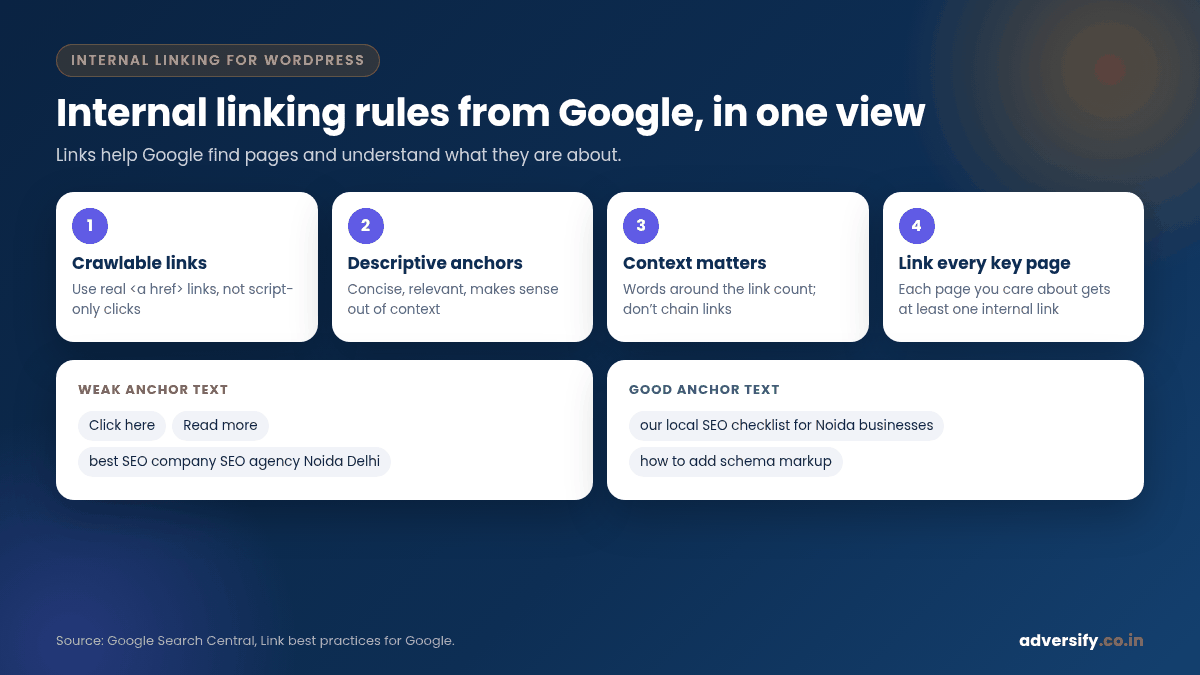
Google says it can generally only crawl a link if it’s an <a> HTML element with an href attribute. Links without an href, or “links” that only work through script events, can’t be extracted reliably. In WordPress this is rarely an issue for normal text links, but watch out for page-builder buttons, sliders, tabs and mega menus that use JavaScript instead of real links. Check them with the URL Inspection tool in Search Console (URL Inspection tool).
Write good anchor text
Google describes good anchor text as descriptive, reasonably concise and relevant to both the page it’s on and the page it links to. It gives “Click here to learn more” and “Read more” as examples of anchors that are too generic, and suggests reading the anchor text out of context to see if it still makes sense.
Give links context, and don’t stuff keywords
Google says the words before and after a link matter, and advises against chaining several links next to each other. It also warns against cramming every related keyword into anchor text, reminding site owners that keyword stuffing violates its spam policies.
Link every page you care about
Google’s internal linking advice is to think about which other pages on your site could help readers understand a page, and link to them in context. It says every page you care about should have a link from at least one other page on your site, and that there’s no magical ideal number of links per page.
Use image alt text when images are links
For images used as links, Google uses the image’s alt attribute as anchor text. If you link a banner or button image, give it descriptive alt text.
| Anchor text | Verdict | Why |
|---|---|---|
| “Click here” | Weak | Says nothing about the destination |
| “Read more” | Weak | Generic; Google uses it as an example of bad anchor text |
| “our local SEO checklist for Noida businesses” | Good | Descriptive and concise; makes sense on its own |
| “best SEO company SEO services SEO agency Noida Delhi” | Bad | Keyword stuffing; reads unnaturally |
| “how to add schema markup” | Good | Tells the reader exactly what they’ll learn |
Plan your structure before adding links
Random links help a little. Planned links help a lot. The simplest model for most business sites is the topic cluster.
Pillar pages and cluster posts
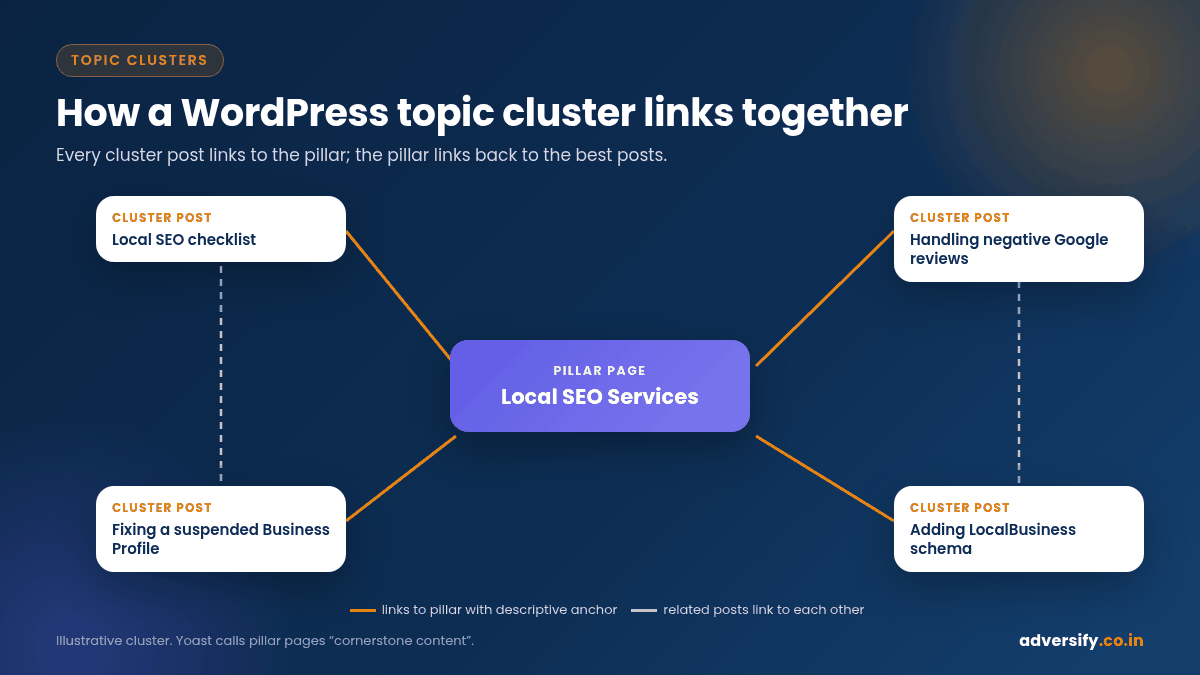
- Pillar page: your main page on a topic, usually a service page (for example, Local SEO Services) or a long, comprehensive guide.
- Cluster posts: blog posts that answer specific questions within that topic (for example, a local SEO checklist, how to handle negative reviews, how to fix a suspended Business Profile, how to add LocalBusiness schema).
- Links: every cluster post links to the pillar with descriptive anchor text; the pillar links out to the most useful cluster posts; related cluster posts link to each other where it genuinely helps the reader.
Yoast calls these main articles “cornerstone content” and recommends linking to them from other articles on the same topic (Yoast: Internal linking suggestions).
Keep important pages close to the home page
Pages that matter to your business, such as main services and key locations, should be reachable in a few clicks from the home page through the menu or prominent links. Google’s Search Console Links report suggests using its internal links data to confirm that core pages are properly linked and that users can get from one page to another with the fewest clicks (Search Console: Links report).
Use categories and tags with care
WordPress creates archive pages for every category and tag. A small number of well-named categories helps visitors browse and gives older posts extra links. Dozens of tags used once each create thin archive pages that add little. Keep categories meaningful and tidy.
Add breadcrumbs
Breadcrumbs show visitors where they are (Home > Blog > SEO > This post) and add consistent links back up the structure. Many WordPress themes and SEO plugins, including Yoast SEO, can output breadcrumbs, and Google supports BreadcrumbList structured data (Google: Breadcrumb markup). Our guide on how to add schema covers structured data in more detail.
How to add internal links in WordPress, step by step
Step 1: Add a link in the block editor
- Select the words you want to turn into a link.
- Click the link button in the block toolbar, or press Ctrl+K (⌘+K on Mac).
- Start typing a keyword, page title or post title. WordPress searches your own site and shows matching posts and pages.
- Choose the right result and press Enter.
WordPress also lets you paste a copied URL over selected text to turn it into a link (WordPress: Link control). For internal links, leave “Open in new tab” off in most cases, so readers stay in the same tab, and don’t mark your own pages as nofollow.
Step 2: Check the link points to the final URL
WordPress notes that it checks whether a link is formatted like a valid URL, but it does not confirm that the destination exists or loads. After publishing, click every new link once. Link to the final, canonical URL rather than an old address that redirects; Google’s site move guide recommends updating internal links to new URLs instead of relying on redirects.
Step 3: Link from old posts to new ones
This is the step most people skip. When you publish a new post, find three to five older, relevant posts and add a link to the new one in context. The new post then gets discovered sooner and gets context from pages that already have visitors.
Step 4: Link from informational posts to service pages
Your blog attracts visitors who are researching. Your service pages convert visitors who are ready. Bridge the two with natural, helpful links, for example from a post about Core Web Vitals to your website maintenance service, where speed is part of the work.
Step 5: Add a “related reading” section sparingly
A short list of two or three related guides at the end of a post helps readers keep going. Hand-pick them where possible; automated related-post widgets can be useful but sometimes surface weak matches.
Elementor and page builders
On Elementor pages, text links inside Text Editor widgets work like normal links. For buttons, icon boxes and image boxes, use the widget’s Link field so the output is a real <a href>. Avoid linking whole cards with custom scripts.
WordPress tools that help with internal linking
| Tool | What it helps with | Notes |
|---|---|---|
| Block editor link search | Finding and linking your own posts and pages quickly | Built into WordPress; Ctrl+K shortcut |
| Yoast SEO | Counts of internal links in and to each post in the posts overview; cornerstone content | Internal linking suggestions are a Yoast SEO Premium feature |
| Google Search Console Links report | Top internally linked pages and which pages link to a given URL | Free; uses Google’s own data |
| URL Inspection tool | Checking that links in builder elements appear in rendered HTML | Free; inside Search Console |
| A site crawler | Finding broken links, redirected links and pages with few or no internal links | Several desktop and cloud tools exist; choose one that fits your site size |
How to audit internal links on an existing WordPress site
- List your priority pages. Main services, top locations and the guides that bring enquiries.
- Check how many internal links each receives. Use the Search Console Links report or your plugin’s link counts. Priority pages with very few links are the first fix.
- Find orphan pages. Compare your sitemap with the pages your crawler can reach through links. Any page in the sitemap but not reachable through links needs at least one contextual link, or should be reviewed for removal.
- Fix broken and redirected links. Update them to the correct final URL.
- Improve generic anchors. Replace “click here” and “read more” with descriptive text.
- Add links from your most visited posts. Check analytics for your top blog posts and make sure each one links to the relevant service page.
- Repeat quarterly. Every new post is a chance to add and receive links.
Internal linking after a redesign or URL change
Whenever URLs change, internal links are the first thing to update. Google’s guide to moving a site says to update internal links on the new site from the old URLs to the new ones, using your URL mapping, rather than leaving visitors and crawlers to pass through redirects (Google: How to move a site). In WordPress, that usually means a search-and-replace of old URLs in post content, a check of menus and widgets, and a fresh crawl to confirm nothing still points to a redirect or a 404. If you change your permalink structure under Settings, every post URL changes at once, so plan redirects and link updates before you click Save.
A worked example: building one topic cluster
Here is how a cluster might look for a hypothetical clinic in Noida that wants more appointment enquiries from search:
- Pillar: the “Dental Implants in Noida” service page.
- Cluster posts: “How long do dental implants last?”, “Dental implants vs bridges”, “What happens at your first implant consultation” and “Caring for implants after surgery”.
- Links: each post links once to the service page with a natural anchor such as “dental implant treatment at our Noida clinic”; the service page links to the comparison and consultation posts in its FAQ; the aftercare post links to the “how long do implants last” post.
The result is a small, clear structure where every page has at least one contextual link, the service page receives links from every related post, and a reader can move from research to booking in two clicks.
Common internal linking mistakes
- Exact-match anchors everywhere. Using the same keyword-heavy anchor on every link looks unnatural. Vary the wording naturally.
- Linking only from the menu. Navigation links help, but contextual links inside content carry the clearest meaning.
- Too many links in one paragraph. Google advises against chaining links next to each other.
- Nofollow on your own pages. Google suggests using nofollow for sources you don’t trust, paid links or user-generated links, not for your own content.
- Linking to redirected or deleted URLs. These waste crawling and frustrate readers. Update them after any URL change or redesign.
- Two pages competing for one topic. If two posts target the same query, merge them or make one clearly the main page and link to it from the other.
Frequently asked questions
How many internal links should a blog post have?
Google says there is no magical ideal number. Add links wherever they genuinely help the reader. For a typical long guide, a handful of contextual links to related posts and one or two relevant service pages is a sensible starting point.
Do internal links help SEO?
Google says it uses links as a signal to determine the relevancy of pages and to find new pages to crawl. Internal links also guide visitors towards pages that convert. They support SEO; they don’t guarantee rankings on their own.
Should internal links open in a new tab?
Usually not. Readers expect links within the same site to open in the same tab. Opening new tabs is more common for external links or downloads.
Are footer and menu links enough?
They help with navigation and discovery, but contextual links within content give more context through anchor text and surrounding words, as Google’s link guidance explains.
What is an orphan page?
A page that no other page on your site links to. Visitors can’t reach it by browsing, and Google may only find it through your sitemap or external links.
Want a free internal linking review?
If your WordPress site has plenty of content but your service pages aren’t getting the attention they deserve, internal linking is often the quickest win. Our SEO team in Noida and Hauz Khas, New Delhi maps your topic clusters, finds orphan pages and broken links, and adds links that make sense for readers. If you’re planning a bigger change, our web design team builds the structure in from day one. Request a free SEO audit to see where your site stands.
6 Responses