
Few things feel worse for a business owner than opening your own website and finding spam pages, strange redirects or a red “Dangerous site” warning in Chrome. If you need to recover a hacked WordPress site, the good news is that most hacks can be cleaned up and the site brought back safely. The bad news is that rushing, deleting things at random or simply restoring an old backup without closing the hole usually means the attacker comes straight back.
This guide walks you through a calm, step-by-step recovery: confirm the hack, contain it, clean files and the database, close the entry point, get Google warnings removed and prevent a repeat. It is written for business owners, with enough detail for whoever does the hands-on work.
Key takeaways
- Do not panic and do not start deleting files. Document what you see first; it becomes your incident report.
- Contain the damage early: reset every password (WordPress, hosting, SFTP, database), log out all users by changing the secret keys, and take a snapshot backup even of the infected site.
- Clean thoroughly: replace WordPress core folders with fresh copies of the same version, reinstall plugins and themes from trusted sources, and check the database, users and .htaccess.
- Find and fix the entry point (often an outdated plugin, weak password or nulled theme), or the hack will return.
- If Google flagged the site, fix every affected page, then use “Request Review” in Search Console’s Security issues report.
- Prevention is cheaper than recovery: updates, off-site backups, two-factor authentication and monitoring.
Signs your WordPress site has been hacked
“Hacked” can mean many different things, so start by writing down the exact symptoms. The official WordPress “My site was hacked” FAQ calls these indicators of compromise and lists clear examples such as the site being blacklisted by search engines, the host disabling the site, the site being flagged for distributing malware, visitors’ antivirus tools flagging it, and unauthorised behaviour like new users being created.
Common warning signs on business websites include:
- Browser or search warnings: Chrome shows a red interstitial page, or Google search results show “This site may be hacked”.
- Spam in Google: a
site:yourdomain.comsearch shows pages you never created, often in Japanese, about pharmacy products, casinos or replica goods. - Redirects: visitors from Google or on mobile are sent to another website, while you see the normal site when you type the address directly.
- Unknown admin users or users whose role was changed to Administrator.
- Unexpected files in the root folder or in
wp-content/uploads, especially PHP files where only images should be. - Hosting alerts: your host suspends the account, reports malware or warns that the server is sending spam email.
- Sudden changes in Search Console: a spike in indexed pages, new queries in other languages, or messages in the Security issues report.
- Broken site behaviour: white screens, pop-ups, injected links in the footer or contact forms that send to a different email address.
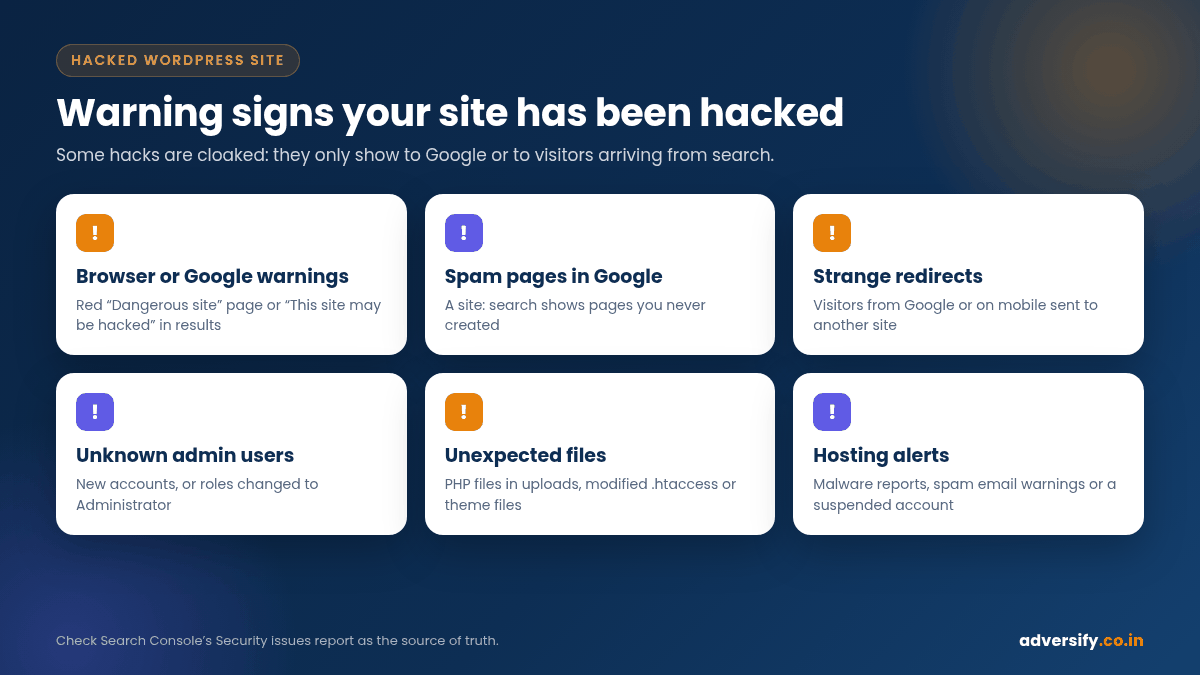
One important detail: some hacks are cloaked. They show spam only to Googlebot or only to visitors who arrive from a search engine, so the site may look normal to you. Google’s Security issues report documentation recommends using the URL Inspection tool to see a page as Google sees it, and using cURL or Wget with different user agents and referrers to reproduce the problem safely, rather than opening infected pages in your browser.
Before you start: what not to do
These common first reactions often make recovery slower or less complete:
| Common reaction | Why it causes problems | Do this instead |
|---|---|---|
| Deleting the whole site in panic | You lose evidence of how the attacker got in, and possibly content you cannot rebuild | Take a full snapshot of files and database first, even if infected |
| Restoring the latest backup and moving on | The backup may already contain the malware, and the vulnerability is still open | Restore only a backup you have checked, then fix the entry point |
| Only changing the WordPress admin password | Attackers often have other access: SFTP, hosting panel, database or a hidden admin user | Reset every access point and review all users |
| Using “Reinstall now” in the dashboard | It overwrites existing files but does not remove extra files a hacker added | Replace core folders manually with clean copies of the same version |
| Requesting a Google review straight away | If anything is still infected, the review fails and the warning stays longer | Request review only when every affected page is clean |
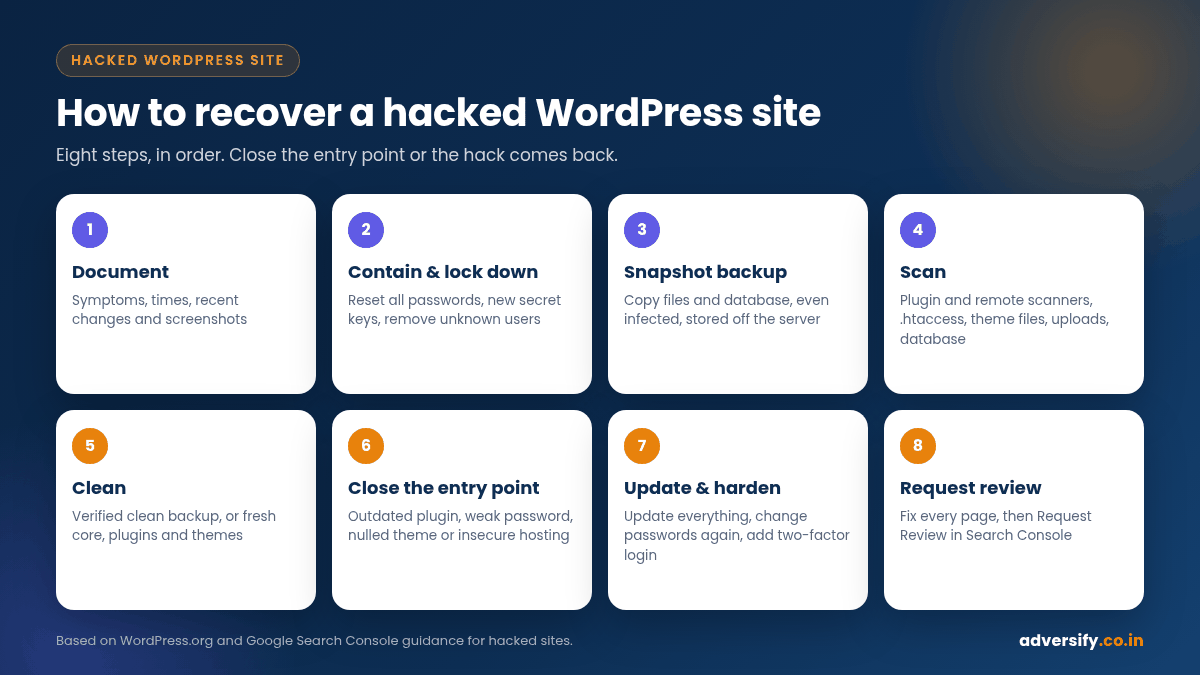
How to recover a hacked WordPress site: step by step
The steps below follow the WordPress documentation and Google’s guidance for hacked sites. Google notes that fixing malware requires the ability to read and understand code and possibly web server configuration, so bring in help early if that is not you.
Step 1: Document the incident
Before touching anything, note what you are seeing, when you first noticed it (with time zone) and any recent changes: a new plugin, a theme edit, a new team member or a freelancer who had access. The WordPress FAQ describes this as the baseline for an incident report, and it is invaluable whether you fix the site yourself or hand it to a specialist. Take screenshots and note your hosting details, WordPress version and PHP version.
Step 2: Contain the damage and lock down access
The aim is to stop the attacker from making further changes while you work:
- Consider maintenance mode if the site is redirecting visitors or serving malware, but avoid a long-term
noindex. - Reset every password: all WordPress administrators and editors, hosting control panel, SFTP/FTP, the database user and the email account linked to the admin user. Use long, unique passwords from a password manager.
- Log everyone out. Replace the secret keys and salts in
wp-config.phpwith a fresh set from the official WordPress key generator. This forces anyone still logged in, including the attacker, to sign out. - Review users. In Users, remove accounts you do not recognise and check that nobody has been quietly promoted to Administrator. If you are locked out entirely, the WordPress FAQ explains that you can reset your user through phpMyAdmin or a similar database tool provided by your host.
- Talk to your host. They can confirm whether it is a hack or a server issue, share logs and tell you what backups they hold.
- Scan your own computer. The WordPress FAQ notes that some attacks start on the site owner’s device, where malware steals saved FTP or admin logins. Run a full antivirus scan on every device used to manage the site.
Step 3: Take a snapshot backup, even of the infected site
Download a full copy of the files and an export of the database before cleaning. If something goes wrong during clean-up you will have a reference copy, and it helps with forensics. Store it off the server, label it clearly as infected, then list the clean backups you have (yours, your host’s, a backup plugin’s) and compare their dates with when the hack started.
Step 4: Scan files and database to find the infection
Use more than one method, because no single scanner catches everything. The WordPress FAQ suggests combining application-level scanners (security plugins) with remote scanners that check the site from outside. Then look manually at the places attackers favour:
- .htaccess files in the root and sub-folders: look for redirect rules you did not add.
- Theme files such as
header.php,footer.phpandfunctions.php, plus the rootindex.phpandwp-config.php. - Uploads folder: there should be no PHP files in
wp-content/uploads. - Recently modified files: sort by modification date over the period when the hack began.
- Suspicious code patterns: Google suggests searching for terms such as
eval,base64_decodeandunescape, which are often used to hide injected code. - The database: check the options table for unknown URLs in
siteurlandhome, scripts injected into posts and widgets, and unknown entries in the users table.
Also run a site:yourdomain.com search in Google, adding spammy words such as “pharmacy” or “casino”, to find hacked pages that are indexed. Search Console’s Pages report and sitemaps can reveal URLs you never created.
Step 5: Clean the site
Now remove the hack. There are two main routes, and many recoveries use a mix of both.
Option A: Restore a clean backup
If you have a backup from before the infection and you can confirm it is clean, restoring it is often fastest. You will lose changes made since that date, so export any new orders, leads or posts first. Restoring does not fix the vulnerability, so you still need Steps 6 and 7.
Option B: Clean in place
- Replace WordPress core. Download a fresh copy of the same WordPress version you are running and replace the
wp-adminandwp-includesfolders entirely via SFTP. The WordPress FAQ specifically advises against using the dashboard reinstall for this, because it only overwrites files and leaves added files behind. - Reinstall plugins and themes from WordPress.org or the original developer. Delete anything you do not use, and remove any “nulled” (pirated) premium plugins or themes, which are a well-known source of hidden backdoors.
- Clean wp-content carefully. Keep only genuine media files in uploads and remove executable files that should not be there.
- Clean the database: remove injected scripts and spam links from posts, pages, widgets and options, and delete spam pages the attacker created.
- Restore a clean .htaccess and check
wp-config.phpline by line.
Step 6: Close the entry point
This is the step most DIY clean-ups skip, and it is why many sites are reinfected within days. The WordPress documentation calls it forensics: working out how the attacker got in so the same route cannot be used again. Google’s documentation lists common routes, including insecure directories with open permissions, vulnerabilities in outdated software such as a content management system, and hacked third-party plugins.
Typical causes on small business WordPress sites include:
- An outdated plugin or theme with a known vulnerability.
- A weak or reused password, or an old account for a former employee or freelancer.
- Nulled themes or plugins downloaded from unofficial sites.
- Insecure hosting, wrong file permissions or another infected site on the same shared account.
- Malware on a computer used to log in.
Server logs and modified-file dates usually point to the cause. If you cannot identify it, fix every item above.
Step 7: Update, harden and change passwords again
Once the site is clean, update WordPress core, plugins and themes to their latest versions; the WordPress FAQ notes that older versions are more prone to hacks. Then change all passwords a second time, because any password changed while the site was still infected could have been captured. Apply hardening measures from the official WordPress hardening guide, for example adding define( 'DISALLOW_FILE_EDIT', true ); to wp-config.php so themes and plugins cannot be edited from the dashboard. The guide notes this will not stop an attacker uploading malicious files, but it might stop some attacks. Add two-factor authentication for every administrator, as the WordPress FAQ recommends.
Step 8: Get Google warnings removed
If Google flagged your site, open the Security issues report in Search Console (verify the property first if you have not already). Google’s instructions are specific:
- Expand each issue and read the description and sample URLs. The sample list is not necessarily complete.
- Fix the issue across the whole site. Google says fixing only some pages will not earn a partial return to search results.
- Fix every issue listed, then test your fixes.
- Select Request Review and describe the problem, the steps you took and the outcome.
Google’s request a review guide also asks you to check that cleaned pages are available to Googlebot and not blocked by robots rules or noindex. It gives approximate review times: reviews for sites hacked with spam can take up to several weeks, malware reviews a few days, and phishing reviews about a day. If Google finds the site clean, it says browser and search warnings are removed within 72 hours. Do not resubmit while a review is pending; Google warns that submitting before the issue is fixed can lengthen the next review.
Recovering SEO after a hack
Spam hacks can leave thousands of junk URLs indexed and alter your real pages. After the clean-up:
- Let spam URLs return 404 or 410. Once the spam pages are gone and return a “not found” status, Google drops them over time. Do not redirect thousands of spam URLs to your homepage.
- Use the Removals tool for urgent cases. Search Console’s Removals tool can temporarily hide URLs from results while they drop out of the index.
- Resubmit a clean sitemap that only contains your real pages.
- Check key pages with URL Inspection to confirm titles, canonicals and links are your own.
- Watch Search Console for several weeks: the Pages report, Performance queries and Security issues.
If the hack injected links into your content, review your internal links too; our guide to internal linking for WordPress explains how to audit them. If you rebuild part of the site during recovery, follow a website migration SEO checklist so URL changes do not cost you rankings.
DIY recovery or professional help?
| Situation | DIY is reasonable when… | Get professional help when… |
|---|---|---|
| Type of hack | A single defaced page or a known malicious plugin you can remove | Redirects, cloaked spam, malware warnings or reinfection after a clean-up |
| Backups | You have a recent backup you know is clean | No backup, or every backup appears to be infected |
| Skills | You are comfortable with SFTP, phpMyAdmin and reading PHP | You are not sure what a suspicious file looks like |
| Business impact | A small brochure site with few visitors | An ecommerce store, a lead-generating site or customer data at risk |
| Google status | No warnings in Search Console | Security issues listed, or the site is being labelled as dangerous |
If customer or payment data may have been exposed, the situation goes beyond website clean-up. Speak to your payment provider and legal adviser, and check whether you need to report the incident. In India, the Indian Computer Emergency Response Team (CERT-In) is the national agency for cyber security incident response; ask your adviser whether any reporting obligations apply to your organisation.
How to prevent your WordPress site from being hacked again
A basic prevention routine costs far less than a recovery:
| Measure | What it involves | Suggested frequency |
|---|---|---|
| Updates | WordPress core, plugins, themes and PHP version, tested before going live | Weekly or monthly, plus urgent security releases |
| Off-site backups | Automatic file and database backups stored away from the server, with test restores | Daily for active sites; at least weekly for small sites |
| Access control | Unique passwords, two-factor authentication, remove old users, least access needed | Review quarterly and whenever someone leaves |
| Plugin hygiene | Remove unused plugins, avoid nulled software, choose maintained plugins | Review every quarter |
| Monitoring | Uptime checks, security scans, Search Console alerts | Continuous, with alerts sent to a monitored email |
| HTTPS and hosting | Valid SSL, a reputable host, separate accounts for separate sites | Check at renewal time |
The official WordPress backup documentation is a good starting point. A backup is only useful if it is stored off the server and you have tested that it restores.
If you would rather not manage this yourself, our WordPress website maintenance service covers core, theme and plugin updates, backups and security monitoring, and our maintenance plans range from Basic to Premium depending on how often your site changes. If the site is old, slow or built on abandoned plugins, a rebuild with our website development team may be safer than patching it repeatedly.
Frequently asked questions
How long does it take to recover a hacked WordPress site?
The clean-up itself can take from a few hours to several days, depending on the type of hack, the size of the site and whether a clean backup exists. If Google has flagged the site, add review time: Google says malware reviews take a few days and reviews for sites hacked with spam can take up to several weeks.
Can I just restore a backup to fix a hacked site?
Only if you know the backup is clean, and even then you must fix the vulnerability and change all passwords. Otherwise the attacker can use the same route to get back in.
Will a hack hurt my Google rankings?
It can. Hacked content may be removed from results, pages can show warnings that reduce clicks, and spam pages can dilute your site. Most sites recover visibility after a thorough clean-up and a successful review, but there is no guaranteed timeline.
Is WordPress itself insecure?
WordPress is open source software, and the project has a dedicated security team (see its security page). Google lists outdated software, vulnerable third-party plugins and insecure directories among common ways sites are compromised, which is why updates and access control matter so much.
What should I tell Google when I request a review?
Explain the exact problem, the steps you took to fix it and the result. For example: “For content injection hacked URLs, I removed the spam content and corrected the vulnerability by updating an out-of-date plugin.”
Need help getting your site back?
If your WordPress site has been hacked, or you want to make sure it never is, our team can help with clean-up, hardening and an ongoing maintenance routine, and then check that your SEO has recovered. Contact our team to talk through what you are seeing, or request a free SEO audit once the site is clean to find any lingering issues in search.