
An online store can have great products and still struggle in Google because of problems you cannot see on the storefront: thousands of filter URLs eating crawl capacity, products reachable at several addresses, missing prices in structured data, slow image-heavy templates or category pages with no useful text. An ecommerce SEO audit checklist helps you find those problems in a fixed order, so you fix the issues that matter first instead of chasing every warning a tool reports.
This guide gives you a practical, step-by-step audit for the two platforms we see most often with Indian brands and D2C sellers: WooCommerce (on WordPress) and Shopify. Every recommendation is based on Google Search Central documentation and the platforms’ own developer docs, linked throughout. Use it for a self-audit, or to check the scope of an audit an agency proposes.
Key takeaways
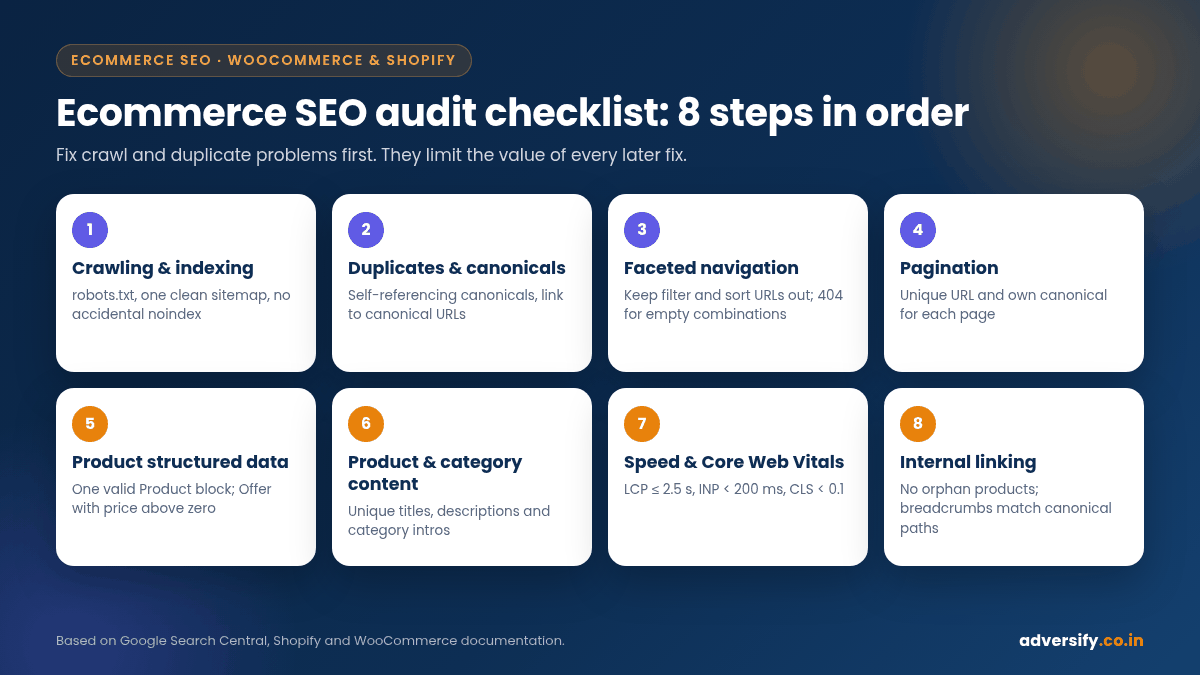
- Audit in order: crawling and indexing, duplicates and canonicals, faceted navigation, pagination, structured data, page content, speed, then internal links. Earlier problems limit everything after them.
- Google treats redirects and rel=”canonical” as strong canonical signals and sitemap inclusion as a weak one. It does not recommend noindex for choosing canonicals within a site.
- For filters, Google’s preferred options are blocking filter URLs in robots.txt or using URL fragments, and returning a 404 for filter combinations with no results.
- Give each paginated page its own URL and canonical. Google no longer uses rel=”next” and rel=”prev”.
- Merchant listing experiences need an Offer with a price greater than zero. WooCommerce outputs product JSON-LD by default; Shopify’s Help Center says its supported themes include product structured data.
- Google’s Core Web Vitals targets are LCP within 2.5 seconds, INP under 200 milliseconds and CLS under 0.1.
- Prioritise by revenue impact: fix indexing of top categories and products before cosmetic warnings.
Before you start: tools and data
You do not need expensive software to run a solid audit. You need access and a few standard tools.
| Tool or data | What you use it for |
|---|---|
| Google Search Console | Page indexing report, sitemaps, Core Web Vitals, Merchant listings and Product snippets enhancement reports, queries by page |
| URL Inspection tool | Check how Google sees a specific URL, the canonical it selected and whether it is indexed (Google help) |
| A site crawler | Find status codes, duplicate titles, canonical tags, redirect chains and orphan pages |
| Rich Results Test | Validate product structured data on sample pages |
| Analytics and order data | Identify which categories and products earn revenue, so you prioritise correctly |
| Platform admin | WooCommerce permalink settings and plugins; Shopify theme code, robots.txt.liquid and URL redirects |
Start by exporting your top 50 revenue-earning products and top 20 categories. Every step below should be checked against those URLs first.
Step 1: Crawling and indexing
If Google cannot crawl or chooses not to index your key pages, nothing else matters. Check these items:
- robots.txt. Make sure product, category and image URLs are not blocked by mistake. Google’s robots.txt introduction says robots.txt is not a mechanism for keeping a page out of Google: a disallowed URL can still be indexed if other pages link to it.
- XML sitemaps. Confirm the sitemap lists only canonical, indexable URLs that return 200, and that it is submitted in Search Console. Google’s guide to building a sitemap covers format and size limits.
- Page indexing report. In Search Console, review “Crawled – currently not indexed”, “Duplicate without user-selected canonical” and “Alternate page with proper canonical tag” for product and category URLs.
- Accidental noindex. Staging settings, SEO plugin defaults or apps can noindex whole sections. Spot-check templates for a robots meta tag.
- Status codes. Product URLs should return 200; deleted items should redirect to a close match or return 404 or 410, not a soft “not found” page with a 200 code.
WooCommerce specifics
Since WordPress 5.5, core exposes a sitemap index at /wp-sitemap.xml covering public post types and taxonomies, according to the WordPress core announcement. Many stores replace it with an SEO plugin’s sitemap. Check that only one sitemap system is active and that it excludes thin taxonomy archives you do not want indexed, such as empty product tags.
Shopify specifics
Shopify’s Help Center says every store automatically generates a sitemap.xml at the root of the domain, linking to separate sitemaps for products, collections, blogs and pages, and that a store in private (password) mode cannot be read by Google. Shopify also generates a default robots.txt; according to Shopify’s developer docs, adding a robots.txt.liquid template replaces that output, and you should save a copy of the current file before publishing changes.
Step 2: Duplicate URLs and canonicalization
Ecommerce sites create duplicates naturally: tracking parameters, sort orders, products in multiple categories, variant parameters and HTTP or www versions. Google’s guide on how to specify a canonical URL lists the signals in order of strength:
| Signal | Strength (per Google) | Best use |
|---|---|---|
| Redirects | Strong | Retiring a duplicate URL completely, for example an old product URL |
| rel=”canonical” link | Strong | Duplicates that must stay accessible, such as parameter versions |
| Sitemap inclusion | Weak | Supporting signal: list only canonical URLs |
The same page says Google does not recommend using noindex to prevent selection of a canonical page within a site, recommends a self-referencing canonical on the canonical page, and advises linking internally to the canonical URL. In your crawl, flag pages whose canonical points to a redirect, a 404 or a noindexed URL, and internal links that point to non-canonical versions.
WooCommerce specifics
The WooCommerce permalinks documentation describes four product base options: Default (/product/item-name), Shop base (/shop/item-name), Shop base with category (/shop/category/item-name) and a Custom base. Category, tag and attribute bases are set separately. Pick one structure and keep it; changing permalink bases on a live store changes every product URL and needs a full redirect plan.
Shopify specifics
Shopify themes output a canonical URL through the Liquid canonical_url object. Products can often be reached both at /products/item and through collection paths such as /collections/name/products/item. View the source of a collection-path URL and confirm the canonical points to the main product URL, and check whether your theme’s product grids link to the collection-path version or the clean /products/ URL.
Step 3: Faceted navigation, filters and sorting
Filters for size, colour, price, brand and rating are useful for shoppers but can create millions of crawlable combinations. Google’s guide to managing faceted navigation says that if you do not need filtered URLs in Search, you can prevent crawling by disallowing them in robots.txt or by using URL fragments, which Google generally does not use for crawling and indexing. It notes rel=”canonical” and nofollow are generally less effective in the long term.
If you do want some filtered pages indexed, the same guide recommends standard URL parameter separators, a consistent filter order, no duplicate filters, and an HTTP 404 status for filter combinations with no results, rather than redirecting to a generic error page.
| Filter type | Typical decision | Why |
|---|---|---|
| Sort order (price, newest) | Do not index; block or keep out of links | Same products, different order |
| Price ranges, ratings, in-stock toggles | Do not index | Endless combinations with little unique search demand |
| High-demand single attributes (for example “cotton kurtas”) | Consider a dedicated, crawlable category or collection page instead | Gives you a clean URL with its own title, intro text and internal links |
| Multi-filter combinations | Do not index | Thin, duplicate and expensive to crawl |
On WooCommerce, filter plugins vary widely in how they build URLs, so test what your plugin generates. On Shopify, storefront filtering adds URL parameters; if you decide to block them, do it through robots.txt.liquid and test the rendered file.
Step 4: Pagination on category and collection pages
Google’s guide to pagination and incremental loading recommends giving each page a unique URL (for example ?page=2), linking pages with normal HTML links (a elements with an href), and not using the first page as the canonical for the whole sequence; each page should have its own canonical. It also says Google no longer uses rel=”next” and rel=”prev”, and advises against fragment identifiers for page numbers. If you use “load more” or infinite scroll, make sure a crawlable paginated version exists so deeper products can be discovered.
Step 5: Product structured data
Google’s introduction to Product structured data explains two types of experiences: product snippets (for pages about products, including reviews) and merchant listings (for pages where customers can buy). It also says providing both on-page structured data and a Merchant Center feed maximises eligibility.
For merchant listings, required properties include the product name, image and a nested Offer; Google states merchant listings require an Offer (not an AggregateOffer) and a price greater than zero. For products with sizes or colours, Google’s product variant documentation recommends ProductGroup with variesBy, hasVariant and productGroupID.
WooCommerce specifics
WooCommerce outputs JSON-LD product structured data on single product pages automatically, as documented on its GitHub wiki, and it can be customised with filters such as woocommerce_structured_data_product. WooCommerce’s own Google Product Feed documentation notes that for performance reasons core outputs a single aggregated block for variable products. Also check that your SEO plugin does not output a second, conflicting Product block.
Shopify specifics
Shopify’s Help Center says all current Shopify-supported themes and Theme Store themes include structured data for products by default. Older or heavily customised themes, and review or SEO apps, can add duplicate or incomplete markup, so test real product URLs.
On both platforms, run your top products through the Rich Results Test, then watch the Merchant listings and Product snippets reports in Search Console for errors such as missing price, availability or images. Only mark up information that is visible on the page.
Step 6: Product and category page content
- Titles and H1s. Product type, key attribute and brand, written for shoppers. Avoid duplicate titles across variants or colours.
- Unique product descriptions. Manufacturer copy is shared by every reseller. Add what buyers actually ask: sizing, materials, care, compatibility, delivery and returns.
- Category and collection intros. A short, useful introduction plus buying guidance helps both shoppers and search engines understand the page. Keep products visible above the fold.
- Images. Descriptive file names and alt text, multiple angles, and compressed modern formats.
- Reviews. Genuine customer reviews add useful content. Never fabricate reviews or mark up reviews that are not shown.
- Policies. Clear shipping, returns and contact pages build trust and support merchant information Google can show.
Step 7: Variants and out-of-stock products
Google’s guidance on URL structure for ecommerce sites recommends that each variant can be identified by a separate URL, using a path segment or a query parameter, and warns that Google does not use fragment identifiers (#black, #white) in indexing. Check that selecting a variant updates the URL and that structured data reflects the selected variant’s price and availability.
For out-of-stock items, a common practical approach (not a Google rule) is:
| Situation | Suggested handling |
|---|---|
| Temporarily out of stock | Keep the page live, show availability clearly, update structured data availability, offer alternatives or a back-in-stock alert |
| Permanently discontinued, close replacement exists | 301 redirect to the replacement or the most relevant category |
| Permanently discontinued, no replacement | Return 404 or 410 and remove internal links and sitemap entries |
Step 8: Page speed and Core Web Vitals
Google’s Core Web Vitals page suggests aiming for Largest Contentful Paint within 2.5 seconds, Interaction to Next Paint under 200 milliseconds and Cumulative Layout Shift under 0.1. Use the Search Console Core Web Vitals report to see which page groups (usually product or collection templates) need work.
| Common cause | WooCommerce fix | Shopify fix |
|---|---|---|
| Heavy hero and product images | Compress, serve WebP or AVIF, set width and height | Use theme image settings and responsive image sizes; avoid oversized uploads |
| Too many plugins or apps | Remove unused plugins; audit which load scripts on every page | Uninstall unused apps and remove leftover app code from the theme |
| Slow hosting or no caching | Quality hosting, page caching and a CDN | Hosting is managed; focus on theme and app weight |
| Layout shift from banners and pop-ups | Reserve space; delay non-essential pop-ups | Same: reserve space for announcement bars and review widgets |
Step 9: Internal linking and site architecture
Important categories should be reachable within a few clicks from the home page, and products should link up to their category and across to related items. Check for orphan products (no internal links), menus that hide key categories behind scripts, and breadcrumbs that match the canonical path. Our guide to internal linking for WordPress applies directly to WooCommerce stores, and the same principles work on Shopify collections.
WooCommerce vs Shopify: quick audit reference
| Check | WooCommerce | Shopify |
|---|---|---|
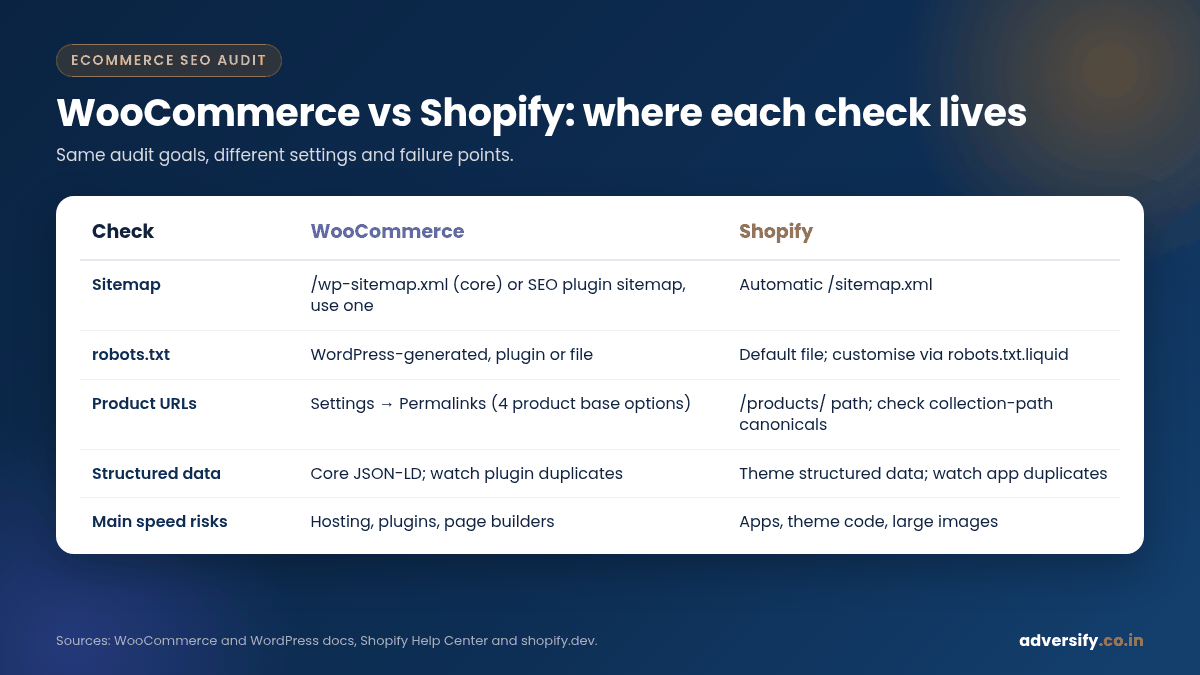
| Sitemap | /wp-sitemap.xml (core) or SEO plugin sitemap; use one | Automatic /sitemap.xml |
| robots.txt | Generated by WordPress or managed by a plugin or file | Default file; customise with robots.txt.liquid |
| Product URL structure | Set under Settings, then Permalinks (four product base options) | /products/ path; check collection-path duplicates and canonicals |
| Product structured data | Core JSON-LD; watch for plugin duplicates and variable products | Theme structured data; watch for app duplicates |
| Filters | Depends on filter plugin URL format | Storefront filter parameters |
| Main speed risks | Hosting, plugins, page builders | Apps, theme code, large images |
How to prioritise your fixes
An audit usually finds dozens of issues. Rank them by business impact and effort, and fix revenue-critical pages first.
| Priority | Examples |
|---|---|
| Critical (fix now) | Key categories or products noindexed, blocked or returning errors; sitemap missing; whole sections canonicalised to the wrong URL |
| High | Filter URLs flooding the index; duplicate product URLs in internal links; structured data errors on top products; failing Core Web Vitals on product templates |
| Medium | Thin category intros, duplicate titles across variants, orphan products, missing alt text |
| Low | Minor warnings with no visible impact on indexing or shoppers |
Re-crawl after each round of fixes and compare the Search Console indexing and enhancement reports over the following weeks. If the audit is part of a replatforming project, for example WooCommerce to Shopify or the reverse, follow our website migration SEO checklist before anything goes live.
One-page ecommerce SEO audit checklist
- robots.txt does not block products, categories, images or required resources
- One clean XML sitemap with only canonical, 200-status URLs, submitted in Search Console
- No accidental noindex on templates; Page indexing report reviewed for top URLs
- Self-referencing canonicals; internal links point to canonical URLs
- Filter and sort URLs kept out of crawling or the index; empty combinations return 404
- Paginated pages have unique URLs and their own canonicals
- Product structured data valid on top products; one Product block per page; price and availability accurate
- Variant URLs identifiable without fragments
- Unique titles, descriptions and category intros for priority pages
- Out-of-stock and discontinued products handled consistently
- Core Web Vitals passing or improving on product and category templates
- No orphan products; breadcrumbs and menus link key categories
Frequently asked questions
How often should I run an ecommerce SEO audit?
A full audit once or twice a year is common, plus a lighter monthly check of Search Console indexing, enhancement and Core Web Vitals reports. Always audit before and after a theme change, replatforming or large catalogue import.
Is Shopify or WooCommerce better for SEO?
Both can rank well. Shopify handles hosting, sitemaps and much of the structured data for you but gives less control over some URL paths. WooCommerce gives more control but depends on your hosting, theme and plugins. The audit checks are the same; the fixes differ.
Should I noindex filtered category pages?
Google’s faceted navigation guide prefers preventing crawling of filter URLs you do not need, through robots.txt or URL fragments, over relying on canonical or nofollow. For high-demand attributes, a dedicated category or collection page is usually a better option than indexing a filter URL.
Do I need a Merchant Center feed if I have structured data?
Not strictly, but Google says providing both on-page structured data and a Merchant Center feed maximises eligibility and helps it verify your data. It is also required for Shopping ads, which our Google Ads management team can set up.
Can an audit guarantee more sales?
No honest audit can guarantee rankings or revenue. It identifies technical and content barriers; results depend on the fixes made, competition and your product and pricing.
Want a second pair of eyes on your store?
If your WooCommerce or Shopify store has indexing gaps, duplicate URLs or slow product pages, we can run this audit for you and deliver a prioritised fix list your developers can act on. Our SEO services cover technical, on-page and content work for ecommerce brands, and our web design team can implement theme and speed fixes. For background on choosing a partner, see our overview of ecommerce SEO companies in India. Request a free SEO audit or contact our team.