
A WordPress website is never really “finished”. Core software, themes and plugins release updates regularly, forms quietly stop sending emails, links break, backups fail without anyone noticing, and the site slowly gets heavier and slower. None of this is dramatic on a single day, but left alone for a few months it can lead to lost leads, poor rankings or a hacked site. A simple, repeatable WordPress maintenance checklist prevents most of these problems.
This guide gives business owners and marketing teams a practical checklist split into weekly, monthly and quarterly tasks, covering backups, updates, security, uptime, speed, broken links, forms and SEO health. It also explains how to run updates safely, what to log and when it makes sense to hand maintenance to a specialist. Where we refer to official recommendations, we link to WordPress.org and Google documentation so you can check them.
Key takeaways
- Maintenance is about prevention: regular backups, updates, security checks and monitoring cost far less effort than recovering a broken or hacked site.
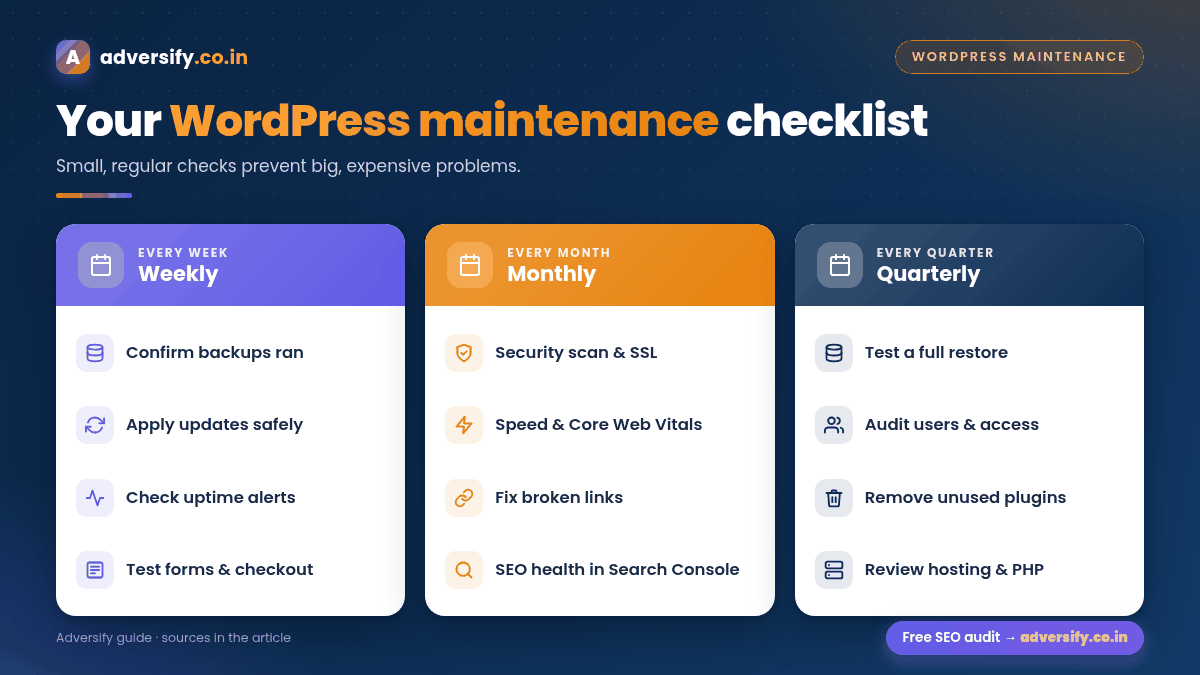
- Split tasks by frequency. Weekly: backups, updates, uptime and form tests. Monthly: security review, speed, broken links and SEO health. Quarterly: restore test, user audit, plugin clean-up and a full review.
- Always take a fresh backup before updating, update on a staging copy where possible, and test key pages and forms afterwards.
- Keep at least three backups in different locations, and actually test restoring one. A backup you have never restored is only a hope.
- Log every change so you can find the cause quickly when something breaks.
Why WordPress maintenance matters
WordPress is flexible because of its huge ecosystem of themes and plugins. That same ecosystem means there are many moving parts to keep current. Each plugin is separate software with its own update cycle, and an outdated or abandoned plugin is one of the most common ways sites get into trouble.
Regular maintenance protects four things your business depends on:
- Security: updates often fix vulnerabilities. WordPress’s own updating guide recommends keeping your site on the latest version.
- Leads and sales: broken contact forms, checkout errors or a site that is down mean lost enquiries, often without anyone noticing for days.
- Search visibility: server errors, broken links, slow pages and security warnings can all hurt how Google crawls and shows your site.
- Speed and user experience: sites accumulate unused plugins, oversized images and database clutter that slow them down.
If your site has already been compromised, maintenance is not enough on its own; follow our step-by-step guide to recover a hacked WordPress site first, then put the routine below in place.
Before you start: set up the basics
A checklist only works if a few things are in place first. Set these up once:
| Basic | Why it matters | What to set up |
|---|---|---|
| Automated backups | Lets you roll back after a bad update or attack | Daily or weekly backups of files and database, stored off the server |
| Staging site | Test updates without risking the live site | A copy of the site from your host or a staging plugin |
| Uptime monitoring | Alerts you when the site goes down | A monitoring service that checks the home page and key pages |
| Admin access list | Know who can change the site | Named user accounts with the right roles, no shared logins |
| Google Search Console | Shows indexing, errors and security issues | Verified property with email alerts on |
| Maintenance log | Speeds up troubleshooting | A shared sheet with date, task, versions changed and notes |
Weekly WordPress maintenance tasks
These quick checks usually take a short time each week once the basics are set up.
1. Confirm backups ran successfully
Do not assume backups work. Check that the latest backup completed, includes both files and the database, and is stored somewhere other than your web server. The WordPress.org backup documentation advises keeping at least three backups, stored in different places.
2. Review and apply updates
Check Dashboard > Updates for WordPress core, plugin, theme and translation updates. By default, WordPress installs minor maintenance and security releases automatically, as explained in its guide to automatic background updates. Since WordPress 5.5, administrators can also enable auto-updates for individual plugins and themes. For business-critical plugins such as page builders, e-commerce and forms, many teams prefer to update manually after a backup and a quick test.
3. Check uptime and errors
Review your uptime monitor for any downtime alerts. If the site was down, find out why: hosting issue, expired domain or SSL certificate, plugin conflict or traffic spike.
4. Test forms and key user journeys
Submit every important form (contact, quote, booking, newsletter) and confirm the email or CRM entry arrives. On e-commerce sites, place a test order or run through checkout to the payment step. Forms often break silently after plugin or email changes.
5. Scan for obvious problems
Open the home page and two or three key pages on mobile and desktop. Look for layout breaks, missing images, pop-up errors or spam comments.
Monthly WordPress maintenance tasks
6. Security review
- Run a malware and file-integrity scan with your security plugin or host’s scanner.
- Check the Security Issues report in Google Search Console. Google explains the report in its Security Issues help page.
- Review failed login attempts and make sure login protection is working. WordPress.org’s brute force attacks guide covers measures such as strong passwords and limiting access.
- Confirm the SSL certificate is valid and auto-renewing.
7. Check Site Health
WordPress includes a built-in Site Health screen under Tools > Site Health. It flags critical issues and recommended improvements, such as an outdated PHP version, inactive plugins or failed background updates. Work through anything marked critical.
8. Speed and Core Web Vitals
Test your home page and top landing pages with PageSpeed Insights and review the Core Web Vitals report in Search Console. Google’s Core Web Vitals guidance suggests aiming for Largest Contentful Paint within 2.5 seconds, Interaction to Next Paint under 200 milliseconds and Cumulative Layout Shift under 0.1. Common monthly fixes include compressing new images, clearing old caches and removing scripts you no longer use.
9. Broken links and redirects
Run a crawl with a link checker or SEO crawler to find broken internal and external links, redirect chains and missing images. Fix or redirect broken URLs, and update internal links so they point directly to the final page. Our guide to internal linking in WordPress explains how to keep links tidy.
10. SEO health check
- Review the Page indexing report in Search Console for new “not indexed” reasons or a sudden drop in indexed pages.
- Check for server errors (5xx) and soft 404s. Google explains how HTTP status codes and network errors affect crawling.
- Make sure the XML sitemap is working and that important pages are not accidentally set to “noindex”.
- Compare clicks and impressions with the previous month to spot sudden drops early.
11. Database and media clean-up
Delete spam comments, trashed posts and old post revisions where your setup allows it, and remove unused media. Always back up before cleaning the database.
Quarterly WordPress maintenance tasks
12. Test a full restore
Restore a recent backup to a staging site and confirm everything works. This is the only way to be sure your backups are usable.
13. Audit users and access
Remove accounts for people who have left, downgrade roles that have more access than they need and make sure every administrator uses a strong, unique password. WordPress explains each role in its roles and capabilities guide. Review access to hosting, domain, DNS and third-party tools at the same time.
14. Plugin and theme review
- Delete deactivated plugins and unused themes (keep one default theme as a fallback if your setup needs it).
- Check whether each active plugin is still maintained and compatible with your WordPress version.
- Replace plugins that duplicate each other’s functions or have been abandoned.
15. Hosting, PHP and database versions
Check which PHP and database versions your host runs. WordPress.org’s requirements page currently recommends PHP 8.3 or greater, MySQL 8.4 or greater or MariaDB 10.11 or greater, and HTTPS support. Test upgrades on staging first, because older plugins may not support newer PHP versions.
16. Content and conversion review
Update outdated pages, check that contact details, offers and team information are current, and review whether key pages still match what customers search for. This is also a good time to plan larger changes, such as a redesign or migration.
The complete WordPress maintenance checklist (at a glance)
| Area | Weekly | Monthly | Quarterly |
|---|---|---|---|
| Backups | Confirm latest backup ran | Check storage and retention | Test a full restore |
| Updates | Apply core, plugin and theme updates | Review auto-update settings | Remove unused or abandoned plugins |
| Security | Watch for alerts | Malware scan, Search Console security report, SSL | User and access audit |
| Uptime | Review monitor alerts | Check hosting resource usage | Review hosting plan and PHP version |
| Speed | Spot-check key pages | PageSpeed Insights, Core Web Vitals | Deeper performance review |
| Links | – | Crawl for broken links and redirects | Review redirect rules |
| Forms | Test key forms and checkout | Check spam protection | Review form fields and routing |
| SEO health | – | Page indexing, errors, sitemap, traffic trends | Content and keyword review |
How to update WordPress safely: step by step
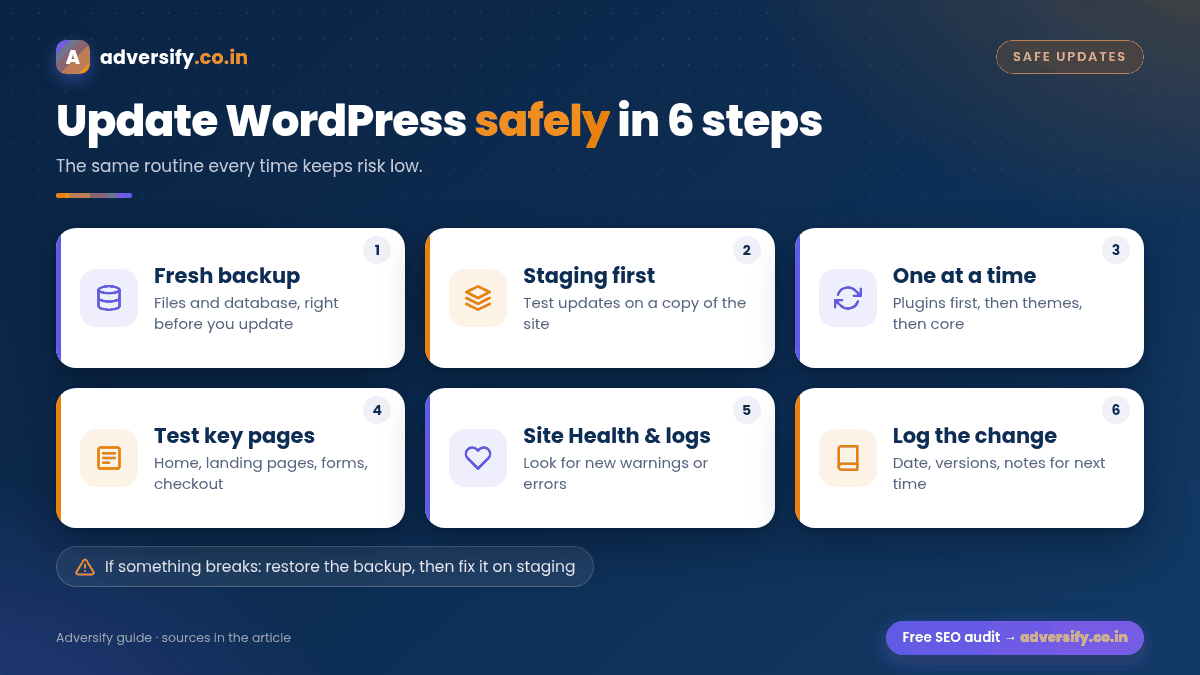
Most maintenance problems happen during updates. Following the same routine every time keeps risk low.
- Take a fresh backup of files and database immediately before updating.
- Read the changelogs for major plugin and theme updates, especially page builders, WooCommerce and form plugins.
- Update on staging first where you can, then repeat on the live site once everything works.
- Update in a sensible order: plugins one at a time (or in small groups), then themes, then core for major releases, checking the site between steps.
- Test key pages and forms: home page, top landing pages, contact and checkout.
- Check Site Health and error logs for new warnings.
- Log the change: date, what was updated, old and new versions, and any issues.
If something breaks, restore the backup or roll back the specific plugin, then investigate on staging rather than on the live site.
Common WordPress maintenance mistakes
- Storing backups only on the same server as the website.
- Ignoring updates for months, then applying dozens at once on the live site.
- Keeping deactivated plugins installed “just in case”.
- Sharing one admin login among several people or agencies.
- Never testing contact forms after changes to email settings or plugins.
- Making major changes without redirects. If you are moving domains or restructuring URLs, follow our website migration SEO checklist.
DIY or professional WordPress maintenance?
| DIY works well when | Professional help makes sense when |
|---|---|
| The site is small with few plugins | The site generates leads or sales every day |
| Someone in the team has time and basic technical skills | You run WooCommerce, memberships or custom code |
| Downtime of a few hours would not hurt much | Downtime or a hack would cost real business |
| You are comfortable restoring backups | You have had security issues before or nobody owns the site |
Whichever route you choose, keep ownership of your hosting, domain and admin accounts in your business’s name, and make sure whoever maintains the site shares a regular log of what was done. Our website maintenance services page explains how we handle this for WordPress sites, and our maintenance plans page lists what each plan covers. If your site is outdated beyond routine fixes, a website redesign may be the better long-term step.
Frequently asked questions
How often should a WordPress site be maintained?
Light checks such as backups, updates, uptime and form tests are best done weekly. Security, speed, broken links and SEO health suit a monthly review, and restore tests, user audits and plugin clean-ups can be done quarterly.
Should I turn on automatic updates for all plugins?
Automatic updates are convenient for simple, well-maintained plugins. For business-critical plugins, many site owners prefer manual updates after a backup so they can test straight away. Whichever you choose, keep reliable backups.
What is the most important WordPress maintenance task?
Reliable, tested backups stored off the server. They are your safety net for every other problem, from a failed update to a hack.
Does WordPress maintenance help SEO?
It supports SEO by keeping the site secure, fast, crawlable and free of broken links and server errors. Maintenance alone will not make a page rank, but neglect can certainly hold rankings back.
How do I know if my WordPress site has been hacked?
Warning signs include unknown admin users, unexpected redirects, spam pages in search results, security warnings in browsers or Search Console, and unfamiliar files. Our hacked site recovery guide explains what to do next.
Can I maintain a WordPress site without technical skills?
Basic tasks such as checking backups, applying routine updates and testing forms are manageable for most site owners. Restores, server issues and security clean-ups are where professional help is usually worth it.
Need help keeping your WordPress site healthy?
Adversify maintains and improves WordPress websites for businesses across India from our offices in Noida and New Delhi. We can review your current setup, backups, security and SEO health and suggest a maintenance routine that fits your site. Contact our team to discuss website maintenance, or request a free website and SEO audit.