
Every smart bidding decision Google Ads makes depends on one thing: the conversions you tell it about. If your tracking counts page views as leads, misses phone calls, or records the same form submission twice, the system will happily optimise towards the wrong outcome. That is why Google Ads conversion tracking is the first thing we check when we audit any account, and why a clean setup often matters more than any bid or keyword change.
This step-by-step guide explains how conversion tracking works, how to choose between native Google Ads conversions and GA4 imports, how to track forms, calls and WhatsApp leads, and how enhanced conversions, offline imports and consent mode fit in. It finishes with a testing routine and the most common mistakes we see in Indian lead-generation and e-commerce accounts. We link to the official Google documentation throughout, because Google updates these features regularly.
Key takeaways
- Conversion tracking tells Google Ads which clicks turned into valuable actions. Smart bidding can only be as good as this data.
- Install the Google tag on every page, then create conversion actions either natively in Google Ads or by importing GA4 key events. Avoid counting the same action from both sources as primary.
- Track the actions that matter to the business: purchases, qualified form leads, calls and WhatsApp enquiries. Keep micro-actions as secondary goals.
- Enhanced conversions and offline (CRM) imports improve accuracy and let you optimise for real sales, not just form fills.
- Test every conversion with Tag Assistant and a real test lead before trusting the numbers.
What is Google Ads conversion tracking?
A conversion is an action you value that happens after someone interacts with your ad: a purchase, a submitted enquiry form, a phone call, a sign-up or an app install. Google’s conversion measurement overview describes conversion tracking as the way to see how ad clicks and other interactions lead to these valuable customer actions.
On a website, the mechanism is straightforward. The Google tag stores information about the ad click, and when the visitor completes the action, a conversion event fires and Google Ads matches it back to the click. Google’s page on how Google Ads tracks website conversions explains this flow in more detail.
Why it matters so much
- Smart bidding needs it. Strategies such as Maximise conversions, Target CPA and Target ROAS optimise towards the conversions you mark as primary. Wrong data means wrong optimisation.
- You can judge keywords, ads and campaigns. Without conversions, you can only compare clicks and click-through rates, which say little about leads or sales.
Before you start: decide what counts as a conversion
The most important decision is not technical. Write down the actions that actually make the business money, and separate them from “nice to know” signals.
| Business type | Primary conversions (optimise for these) | Secondary conversions (observe only) |
|---|---|---|
| Lead generation (services, B2B, education, real estate) | Submitted enquiry form, qualified call, WhatsApp click, offline “qualified lead” or “sale” import | Brochure download, service page views, scroll depth, chat widget opened |
| E-commerce | Purchase with order value | Add to cart, begin checkout, newsletter sign-up |
| Local business (clinic, showroom, restaurant) | Calls from ads, appointment booked, direction requests where relevant | Contact page views, menu or service page views |
| SaaS or app | Trial or account sign-up, demo booked, paid subscription import | Feature page views, video plays |
Keep the primary list short. If everything is primary, a brochure download counts the same as a sales enquiry.
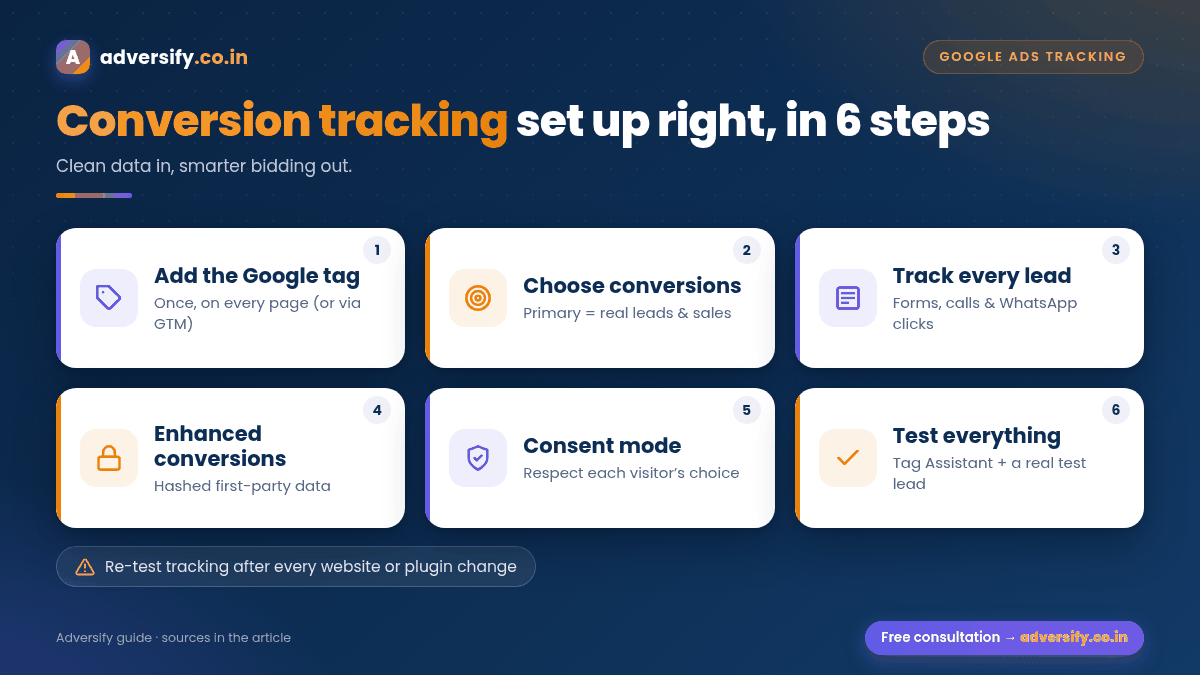
Step 1: Install the Google tag on every page
The Google tag (gtag.js) is a single tag that can send data to Google Ads and Google Analytics. Google’s About the Google tag page explains how it works, and Add a Google tag to your website covers installation options.
You have three common ways to install it:
- Google Tag Manager (GTM): the most flexible option for most business websites. You add the GTM container once and manage all tags, triggers and consent settings inside GTM.
- A CMS or platform integration: WordPress plugins such as Google’s Site Kit, or built-in integrations on Shopify and similar platforms, can place the tag for you.
- Direct code: paste the tag into the header template; later changes need a developer.
Whichever route you choose, make sure the tag loads on every page, including thank-you pages, and that it is installed only once. Duplicate tags are a frequent cause of double counting.
If you use Google Tag Manager
Google’s Tag Assistant troubleshooting guide notes that when you keep Google Ads conversion tags in GTM, you also need the Conversion Linker tag alongside the Google tag and your conversion tags. The Conversion Linker helps store ad click information so conversions can be attributed correctly.
Step 2: Native Google Ads conversions or GA4 import?
You can create conversion actions directly in Google Ads, or create them from Google Analytics 4 key events and import them. Google’s help page on creating conversions from Google Analytics events notes you can use any combination of the two, and compares them.
| Factor | Native Google Ads conversion | GA4 key event imported into Google Ads |
|---|---|---|
| Best for | Optimising Google Ads campaigns as precisely as possible | Teams that want GA4 as the single source of truth across all channels |
| Traffic covered | Conversions from Google Ads interactions | GA4 measures all traffic; Google Ads uses what it can attribute to ads |
| Setup effort | Moderate (tag event or GTM trigger per action) | Lower if GA4 key events already exist |
Our practical rule: for the one or two actions you bid on, a native Google Ads conversion is usually the more precise choice. Import GA4 key events too if you like, but set them as secondary so the same lead is not counted twice in the Conversions column. Whatever you choose, keep event names consistent and documented. GA4’s own key events documentation explains how to mark an event as a key event.
Step 3: Track form, call and WhatsApp leads
Most Indian service businesses get leads through forms, phone calls and WhatsApp. Each needs a different approach.
Form submissions
The cleanest method is to redirect users to a dedicated thank-you page after a successful submission and fire the conversion on that page only. Google’s set up your web conversions guide covers page-load and click-based setups. If your form shows an on-page success message instead (common with Elementor, Contact Form 7 or WPForms), use a GTM trigger based on the form’s success event or a visible success element rather than a simple button click, because a click fires even when validation fails.
- Make sure the thank-you page cannot be reached without submitting the form, and exclude it from search with a noindex tag.
- Use the counting option One for leads. Google’s conversion counting options page recommends “One” when you care whether a lead was generated rather than how many times the action happened.
Phone calls
Google’s phone call conversion tracking page lists four ways to track calls:
- Calls from ads: calls made from call assets, location assets or call-only ads, counted when they last at least the minimum call length you set.
- Calls to a phone number on your website: uses a Google forwarding number that dynamically replaces your number for visitors who came from an ad.
- Clicks on a number on your mobile website: counts taps on a phone number or button; it tracks the click, not the call itself.
- Imported call conversions: calls you track in a CRM or call-tracking system and import, so you can count only calls that became sales or qualified leads.
Google notes that call reporting with forwarding numbers depends on availability in your country, so check the current list in the help article before relying on it. Where forwarding numbers are not available, click-to-call tracking plus a call-length or CRM import process is the practical alternative.
WhatsApp enquiries
For most websites, a WhatsApp lead starts with a click on a “Chat on WhatsApp” button or a wa.me link. Track that click as a conversion with a GTM click trigger (or a Google tag event) on the WhatsApp link. Like phone clicks, this measures intent, not a completed conversation, so:
- Keep the WhatsApp click as a primary conversion only if it reliably leads to real enquiries; otherwise make it secondary.
- Record which chats became qualified leads in your CRM, then import those as offline conversions (see Step 5) so bidding learns from real outcomes.
Step 4: Turn on enhanced conversions
Cookies and click identifiers do not survive every journey: people switch devices, browsers block storage, and some users decline consent. Enhanced conversions help close part of this gap. According to Google’s About enhanced conversions page, the feature supplements your existing conversion tags by sending hashed first-party data, such as an email address, using the one-way SHA256 hashing algorithm, so Google can match conversions to signed-in users who engaged with your ads.
There are two flavours:
- Enhanced conversions for web: improves measurement of conversions that happen on the website, such as purchases.
- Enhanced conversions for leads: for leads captured online that convert later offline, such as a property enquiry that becomes a site visit and then a booking.
Google’s offline import documentation notes that, as of April 2026, enhanced conversions for web and for leads have been combined into a single setting in Google Ads. Setup is described in set up enhanced conversions for web using the Google tag and configure the Google tag for enhanced conversions for leads. Before enabling it, update your privacy policy and make sure you have a lawful basis for sharing customer data under the laws that apply to you, including India’s Digital Personal Data Protection Act, 2023 where relevant.
Step 5: Import offline conversions from your CRM
For lead-generation businesses, a form fill is not the finish line. The real question is which ads produced leads that turned into customers. Offline conversion imports let you send those outcomes back to Google Ads. Google’s About offline conversion imports page now recommends that advertisers who have not yet adopted offline imports start with enhanced conversions for leads, which it describes as an upgraded, easier-to-set-up version.
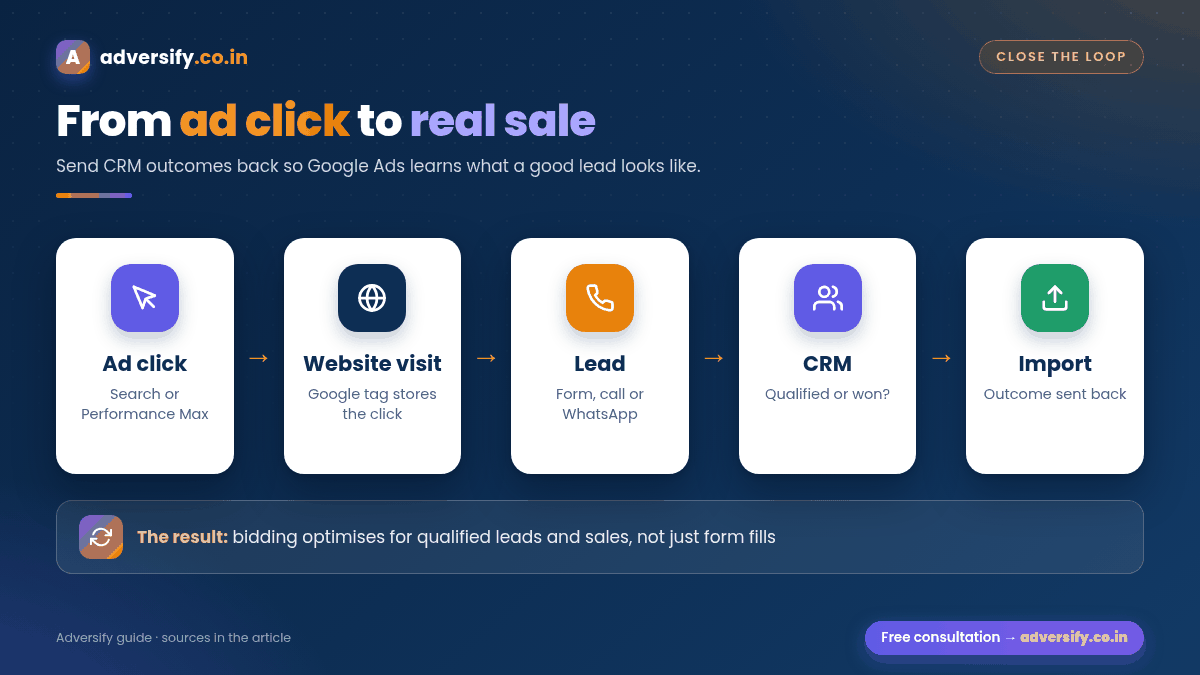
A simple offline workflow looks like this:
- Capture the Google click ID (GCLID) or the user-provided data (such as email) with every lead and store it in your CRM. Google’s guide to offline conversions using GCLID explains the GCLID route.
- Define clear lead stages in the CRM, for example “qualified” and “won”.
- Create matching offline conversion actions in Google Ads.
- Upload outcomes regularly, by scheduled file upload, a CRM integration or Google’s APIs.
- Once enough data flows in, consider making “qualified lead” the primary conversion and moving raw form fills to secondary.
If you upload through the API, note Google’s announcement on the same help page that, starting June 15, 2026, offline conversion imports and enhanced conversions for leads uploads move to the Data Manager API. Check the Google Ads API offline conversions documentation for the current method before building an integration.
Step 6: Set up consent mode
Consent mode lets your Google tags adjust their behaviour based on whether a visitor has accepted cookies. Google’s About consent mode page describes two implementations:
- Basic: Google tags do not load until the user interacts with the consent banner. Nothing is sent to Google before that, and if the user declines, nothing is sent at all.
- Advanced: tags load immediately with a default consent state. If consent is denied, tags send cookieless pings instead of full data, and Google can use these for conversion modelling.
The developer guide on setting up consent mode on websites lists the main consent parameters: ad_storage, ad_user_data, ad_personalization and analytics_storage. If you run ads to users in the European Economic Area, Google’s EEA consent mode updates page explains that you must collect consent and pass consent signals to keep using measurement and personalisation features. Even for India-only campaigns, a proper consent banner and privacy policy are good practice; take legal advice on your specific obligations.
Step 7: Configure each conversion action correctly
Settings inside each conversion action change what you see in reports and what bidding optimises for. Review these for every action:
| Setting | What it does | Typical choice |
|---|---|---|
| Primary or secondary | Primary actions appear in the Conversions column and are used for bidding; secondary actions are for observation in All conversions | Primary for real leads and sales only |
| Count | One (one conversion per click) or Every (each conversion counted) | One for leads; Every for purchases |
| Value | Assigns a value to each conversion | Actual order value for e-commerce; consistent relative values for lead types |
| Click-through conversion window | How long after an ad click a conversion can be counted | Match your sales cycle; Google recommends at least 7 days |
| Attribution model | How credit is shared across ad interactions | Data-driven attribution where available |
Sources: Google’s pages on primary and secondary conversion actions, conversion windows (which can be set from 1 day up to 30, 60 or 90 days depending on the conversion source), conversion values and data-driven attribution.
Step 8: Test before you trust the numbers
Never assume a conversion works because the status says “Recording”. Test it end to end:
- Open Tag Assistant at tagassistant.google.com and connect your site. Confirm the Google tag fires on every page.
- Complete a real test conversion: submit the form, tap the phone number and the WhatsApp button. Check that each fires the correct event exactly once.
- Check consent behaviour: repeat the test after declining cookies and confirm the tags behave as your consent mode setup intends.
- Check Google Ads diagnostics: in the Goals section, review each action’s status and any tag or enhanced conversions diagnostics.
- Reconcile weekly at first: compare Google Ads conversions with leads in your CRM or inbox. Some gap is normal because of attribution and consent differences, but a large gap means something is broken.
Common Google Ads conversion tracking mistakes
| Mistake | What happens | Fix |
|---|---|---|
| Counting page views or button clicks as leads | Inflated conversions, bidding chases low-quality traffic | Fire on confirmed submissions or thank-you pages only |
| Same lead tracked twice (native tag and GA4 import both primary) | Double counting, misleading cost per lead | Keep one source primary, the other secondary |
| Too many primary actions | Micro-actions treated like sales enquiries | Limit primary to real business outcomes |
| “Every” counting for leads | One person refreshing a thank-you page counts as several leads | Use “One” for lead actions |
| Tag missing after a site redesign or plugin change | Conversions drop to zero, bidding loses its signal | Re-test tracking after every site change |
| No offline feedback | Google optimises for form fills, not customers | Import qualified leads and sales from your CRM |
| Ignoring consent | Compliance risk and lost measurement | Implement a consent banner and consent mode |
If you are still deciding how much to invest in paid search, our guides on Google Ads cost in India and Google Ads vs Meta Ads explain the factors that shape budgets, and tracking is what lets you judge whether that spend is working.
A quick Google Ads conversion tracking checklist
- Google tag (or GTM with Conversion Linker) installed once on every page.
- Written list of primary and secondary conversions, agreed with the sales team.
- Form conversions fire only on successful submission.
- Calls tracked with the method available to you; WhatsApp clicks tracked.
- Enhanced conversions enabled, with privacy policy updated.
- GCLID or user-provided data stored with every lead; offline outcomes imported.
- Consent banner and consent mode in place.
- Counting, values, windows and attribution reviewed for each action.
- Every action tested with Tag Assistant and a real test lead.
- Tracking re-tested after each website change.
Frequently asked questions
Should I use GA4 or Google Ads to track conversions?
You can use both. A common approach is native Google Ads conversions as primary for the actions you bid on, with GA4 key events imported as secondary for cross-channel reporting. Just avoid counting the same action twice as primary.
Why do Google Ads and GA4 show different conversion numbers?
They use different attribution models, conversion windows and timing (Google Ads attributes conversions to the date of the ad click), and they handle consent and modelling differently. Small gaps are expected; large ones usually point to a tagging problem.
How long after setup will conversions show in Google Ads?
Test conversions can appear within hours, but reporting is not instant and offline imports appear only after you upload them. Give new actions a few days before judging them, and check the action’s status in the Goals section.
Can I track WhatsApp leads in Google Ads?
You can track clicks on WhatsApp buttons or wa.me links as conversions. To optimise for real enquiries, record qualified WhatsApp leads in a CRM and import them as offline conversions.
Do I need enhanced conversions?
It is not mandatory, but Google positions it as a way to improve measurement accuracy where cookies are limited. If you collect emails or phone numbers in forms or checkout, it is usually worth enabling after updating your privacy policy.
Get your conversion tracking checked
Adversify sets up and manages Google Ads campaigns for businesses across India from our offices in Noida and New Delhi, and conversion tracking is where every engagement starts. If you are not sure your numbers are right, we can review your Google tag, conversion actions, call and WhatsApp tracking and consent setup, and give you a clear list of fixes. Learn more about our Google Ads management and PPC management services, or contact our team for a free consultation.